

PNG to WebP: How to Convert PNG Images Without Losing Transparency
PNG files are reliable, sharp, and easy to use. The problem is that they can also be much larger than they need to be, especially when you upload screenshots, graphics, icons, or transparent images to a website.
That is where PNG to WebP conversion helps. WebP can keep a clean-looking image while making the file much smaller. For many website images, that means faster loading, less bandwidth, and a better experience for people on slower connections.
The most common worry is simple: will converting PNG to WebP remove transparency? The short answer is no, not if the converter handles transparency correctly. WebP supports transparent backgrounds, so a transparent PNG logo, icon, sticker, or graphic can usually become a smaller WebP file without turning the background white or black.
What is a PNG file?
PNG stands for Portable Network Graphics. It is one of the most common image formats for screenshots, logos, icons, interface graphics, diagrams, and images with transparent backgrounds.
People like PNG because it is predictable. It can preserve sharp edges, flat colors, text, and transparency. If you export a logo with a transparent background, PNG usually keeps that background clean. If you save a screenshot, PNG can keep small text readable.
The tradeoff is file size. PNG uses lossless compression, which means it tries to preserve the image data exactly. That is useful for editing and accuracy, but it can create large files. A simple screenshot, app graphic, or product image may be much heavier than needed for a web page.
PNG is especially useful for:
- Logos and icons with transparent backgrounds
- Screenshots with text or interface details
- Graphics with flat colors and sharp lines
- Images that need to be edited again later
- Source files where preserving detail matters more than file size
If you are preparing images for a website, email, blog, documentation page, or landing page, PNG is often a good source format. It is not always the best final delivery format.
What is a WebP file?
WebP is a modern image format created for the web. It is designed to provide strong compression while keeping images visually clean. In everyday terms, WebP often gives you a smaller file than PNG or JPG without making the image look obviously worse.
WebP supports both lossy and lossless compression:
- Lossy WebP creates smaller files by removing some image information that is less noticeable.
- Lossless WebP keeps image data more accurately, usually with larger files than lossy WebP but often still smaller than PNG.
WebP also supports transparency. That makes it useful for transparent logos, icons, product cutouts, UI graphics, and other images where the background needs to remain invisible.
Modern browsers support WebP well, which is why it is widely used on websites. If your main goal is to make images load faster online, WebP is usually worth considering.
Why convert PNG to WebP?
The biggest reason to convert PNG to WebP is file size. Large images slow down pages, especially on mobile networks. When an image is smaller, the browser can download it faster, and the page feels lighter.
For websites, smaller image files can help with:
- Faster page loading
- Lower bandwidth usage
- Better mobile experience
- Smaller image-heavy blog posts or tool pages
- Easier uploads where file size limits exist
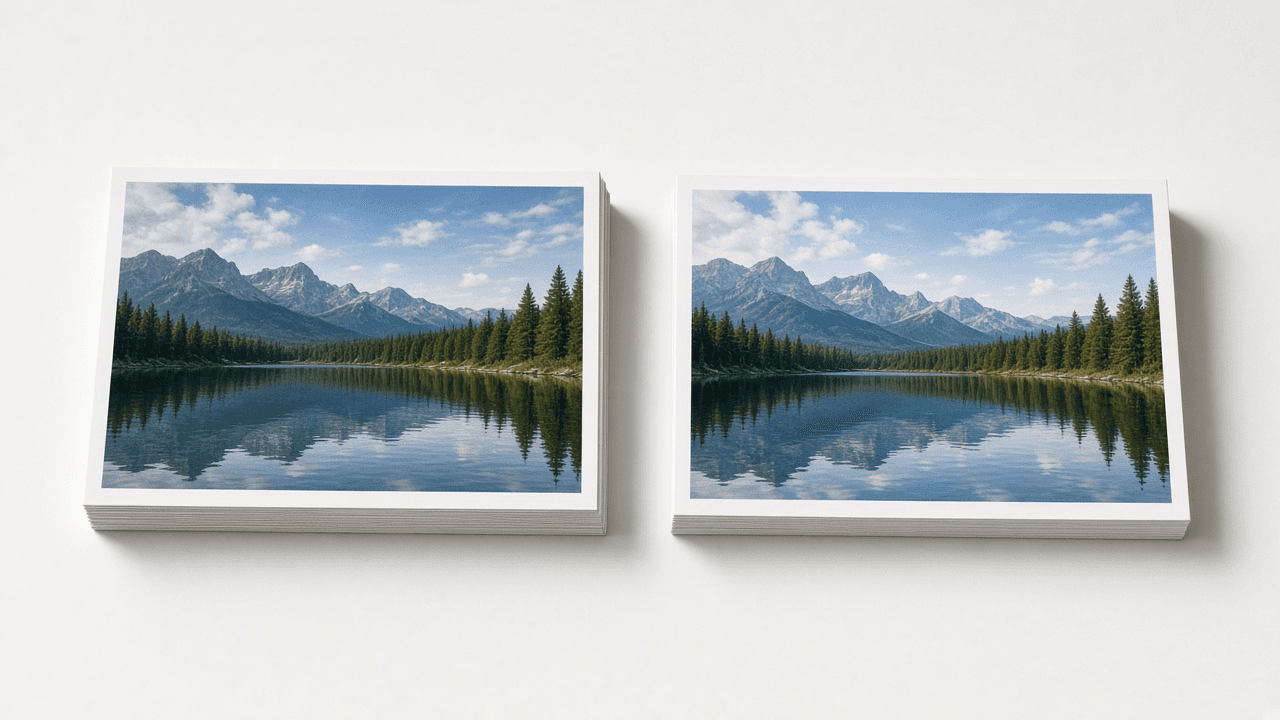
This does not mean every PNG should be replaced. PNG is excellent as a source or editing format. WebP is better as a final web delivery format.
If you have a PNG image ready for a page, you can use the PNG to WebP converter to create a smaller WebP copy. If you are working with other formats too, the Image Converter hub is a better starting point.
Will PNG to WebP keep transparency?
Yes, WebP supports transparency. A transparent PNG can become a transparent WebP file.
The important detail is the converter. A good PNG to WebP converter should preserve the alpha channel, which is the part of the image that stores transparency information. If the converter ignores transparency, the background may turn white, black, or another solid color.
That matters for:
- Logos placed over colored backgrounds
- Product images with cutout backgrounds
- Stickers, badges, and icons
- Interface graphics used on cards or buttons
- Watermarks and overlays
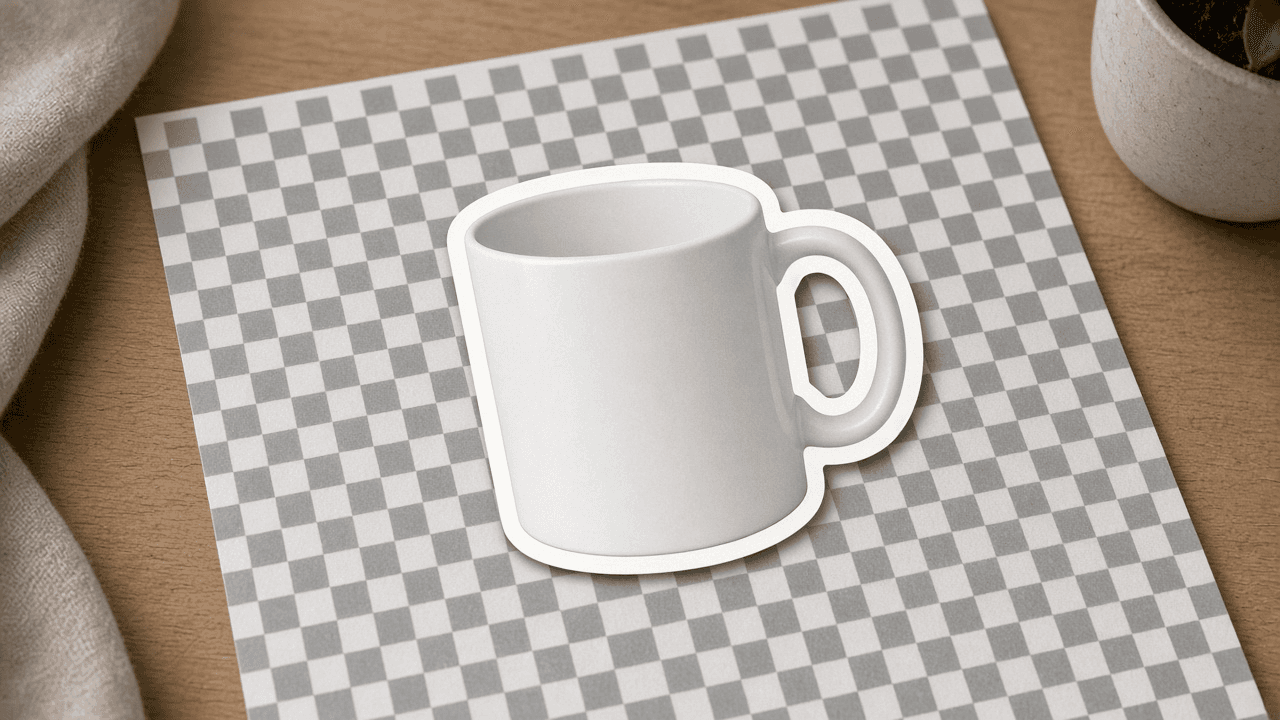
After converting, open the WebP on a different background if transparency matters. A checkerboard preview is helpful, but the real test is placing the image over a dark, light, or colored surface and checking the edges.
How to convert PNG to WebP
The simplest workflow is browser-based. You do not need design software for a basic conversion.
- Open the PNG to WebP converter.
- Upload your PNG image.
- Choose WebP as the output format if the tool asks for a format.
- Convert the image.
- Download the WebP file.
- Preview it before replacing the original image on your website.

For best results, compare the converted image beside the original. Check the parts people will notice: text, edges, faces, product details, shadows, and transparent areas.
If you are converting a photo-like PNG, lossy WebP may create a much smaller file with little visible difference. If you are converting a logo, screenshot, diagram, or image with text, use a higher quality setting if available, or choose lossless WebP when exact detail matters.
You can also use related tools depending on the image you have:
- Use JPG to WebP for photos and camera-style images.
- Use WebP to PNG when you need a PNG copy again.
- Use AVIF to WebP when a site or app accepts WebP but not AVIF.
PNG vs WebP: which format should you use?
PNG and WebP are both useful, but they solve different problems. PNG is a dependable format for editing, screenshots, and transparency. WebP is usually better when you want smaller web images.
| Feature | PNG | WebP |
|---|---|---|
| File size | Often larger | Usually smaller |
| Transparency | Supported | Supported |
| Quality | Lossless and sharp | Lossy or lossless |
| Browser support | Universal | Strong in modern browsers |
| Best for | Source images, screenshots, logos, exact graphics | Website delivery, faster pages, optimized image assets |
| Editing workflow | Very convenient | Better as an output format |
Here is a practical way to decide:
- Choose PNG if you are saving a source image, editing a design, preserving exact pixels, or sharing with software that may not support WebP.
- Choose WebP if you are publishing images online and want to reduce file size while keeping good quality.
For most websites, keep your original PNG safely stored, then publish a WebP version where browser delivery matters.
When should you keep PNG instead?
WebP is useful, but PNG is still the safer choice in some situations.
Keep PNG when:
- The image is a master file you may edit later.
- The file contains tiny text that must stay extremely crisp.
- You are sending the image to someone who asked specifically for PNG.
- You need compatibility with older software, design tools, or workflows.
- You are archiving images and want a simple, widely accepted format.
PNG can also be better for some screenshots and interface graphics if the WebP settings are too aggressive. A heavily compressed WebP can make small text fuzzy or create messy edges around UI elements.
That is why previewing matters. The best format is not just the one with the smallest number of kilobytes. It is the smallest file that still looks right for the job.
Checklist before converting PNG to WebP
Before you replace PNG files with WebP, run through this quick checklist:
- Keep a backup copy of the original PNG.
- Check whether the PNG has transparency.
- Decide whether you need lossy or lossless WebP.
- Preview the WebP at the size people will actually see it.
- Test transparent images on light and dark backgrounds.
- Check small text, sharp edges, and fine details.
- Use descriptive filenames, such as
product-icon.webp. - Update image references carefully if the file is used on a website.
This is important for logos and UI assets, where transparent edges can show problems quickly.
Common PNG to WebP mistakes to avoid
The conversion itself is simple, but a few mistakes can create poor results.
Mistake 1: Replacing the only original file
Do not delete the original PNG if it is your source file. Save the WebP as a delivery copy. If you need to edit the image later, the PNG may be easier and safer to work with.
Mistake 2: Ignoring transparency
If the image has a transparent background, check it after conversion. Place it over a colored background and inspect the edges. This helps catch halos, rough outlines, and accidental solid backgrounds.
Mistake 3: Compressing text-heavy images too much
Screenshots, diagrams, and UI graphics can become blurry if compression is too strong. If text readability matters, use higher quality settings or lossless WebP.
Mistake 4: Judging quality only while zoomed in
Zooming in is useful, but normal display size matters more. Check both.
Mistake 5: Assuming WebP is always the final answer
WebP is excellent for many web images, but not every upload destination accepts it. If a form, marketplace, or document tool requires PNG or JPG, use that required format instead.
Frequently asked questions
Can WebP keep PNG transparency?
Yes. WebP supports transparency, so a transparent PNG can become a transparent WebP. Use a converter that preserves the alpha channel, then preview the converted file on different backgrounds.
Is WebP always smaller than PNG?
Not always, but it often is. WebP usually creates smaller web-ready files, especially for complex images. Very simple graphics or already optimized PNG files may show a smaller difference.
Does PNG to WebP conversion reduce quality?
Lossy WebP can reduce quality because it removes some image information to make the file smaller. Lossless WebP aims to preserve detail more closely. For most web uses, a well-converted WebP can look very close to the original PNG.
Should I use WebP for logos?
You can use WebP for logos if the result looks sharp and transparency is preserved. Keep the original PNG or vector source file, and use the WebP copy where smaller page weight matters.
What if I need to convert WebP back to PNG?
Use a WebP to PNG converter. This is useful when a platform does not accept WebP or when you need a PNG copy for editing or compatibility.
Converting PNG to WebP is one of the easiest ways to reduce image file size without giving up transparent backgrounds. Keep your source PNGs, publish optimized WebP copies where they make sense, and preview the result before replacing important images.
Related posts
- Problem-awareOct 24, 2026 · 9 min read
PDF to Word: How to Convert a PDF Into an Editable DOCX File
Convert PDF to Word the practical way: get editable text, understand scanned vs digital PDFs, and check layout before you send the DOCX.
- Problem-awareOct 24, 2026 · 9 min read
HEIC to JPG: How to Convert iPhone Photos for Sharing and Uploads
Convert HEIC iPhone photos to JPG the right way: fix upload compatibility, keep quality usable, and know when to keep the original HEIC file.
- Problem-awareOct 21, 2026 · 12 min read
How to Use ChatGPT at Work in 2026: 25 Prompts to Save Time
Use these 25 copy-and-paste ChatGPT prompts to draft, plan, summarize, research, and solve everyday work tasks more efficiently.