

PDF to Word: How to Convert a PDF Into an Editable DOCX File
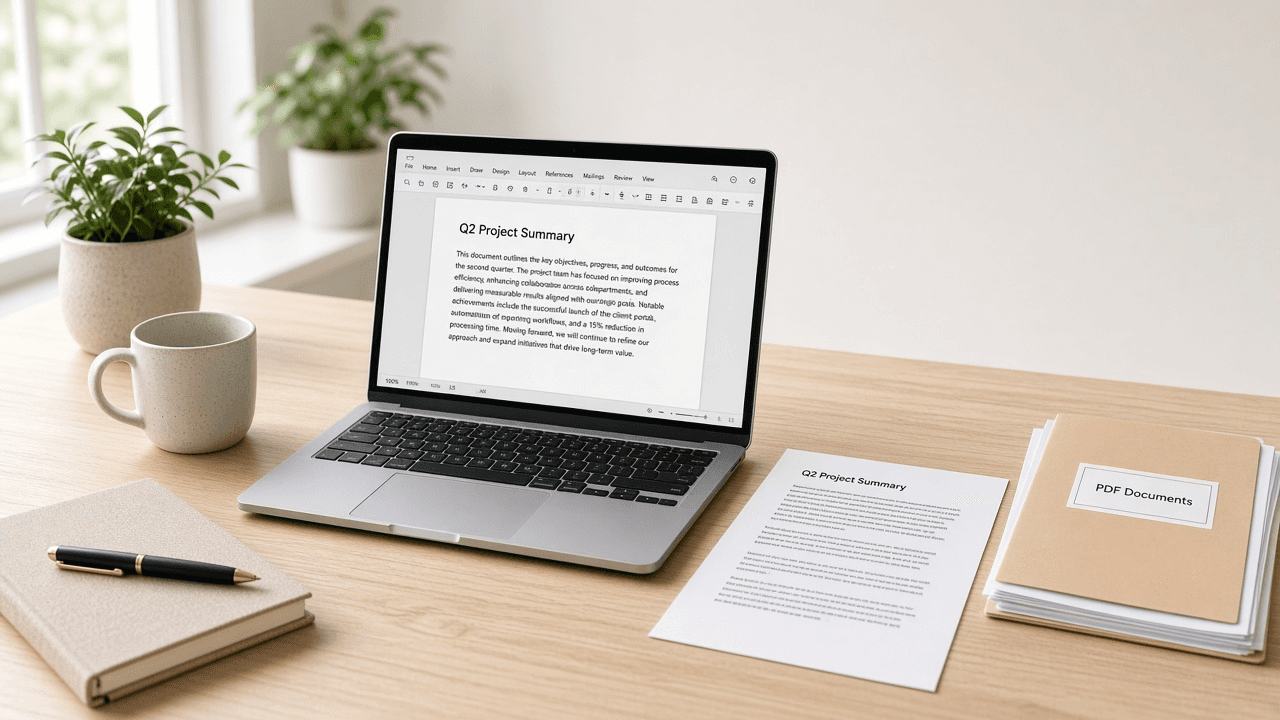
A PDF is excellent for sharing a finished page. It keeps layout stable across devices. The trouble starts when you need to change a paragraph, update a date, rewrite a section, or reuse the content in another document.
That is when PDF to Word conversion helps. You turn a fixed PDF into an editable DOCX file you can open in Microsoft Word or a compatible editor, then revise the text instead of rebuilding the whole document from scratch.
When should you convert PDF to Word?
Convert a PDF to Word when the job is editing, not just reading. Typical reasons include:
- Updating contract wording before a new round of review
- Reusing a proposal template for another client
- Fixing typos in a report that only exists as a PDF
- Turning a resume PDF back into an editable draft
- Extracting sections into a longer Word document
- Collaborating with someone who prefers Track Changes in Word
If you only need to view, print, or archive the file, leave it as a PDF. Conversion is most valuable when the next step is rewriting.
Related image workflows are different. If your blocker is a photo format instead of a document, use guides like HEIC to JPG or PNG to WebP. For documents, start with the PDF to Word converter.
Digital PDF vs scanned PDF
Not every PDF converts the same way. The biggest quality difference comes from how the PDF was created.
Digital PDF
A digital PDF usually comes from Word, Google Docs, a design export, or another app that wrote real text into the file. You can often select and copy text in a PDF reader.
These files generally convert better because the converter can map characters, paragraphs, and many layout elements into Word.
Scanned PDF
A scanned PDF is often a photograph or scan of paper pages. The "text" may actually be an image. In that case, conversion depends on OCR (optical character recognition).
OCR can work well on clean, high-contrast pages. It struggles with:
- Crooked scans
- Low-resolution phone photos of paper
- Handwriting
- Stamps overlapping text
- Multi-column layouts with dense footnotes
| PDF type | What you can select | Typical Word result | Best next step |
|---|---|---|---|
| Digital text PDF | Real text | Cleaner editable paragraphs | Convert, then tidy headings |
| Scanned image PDF | Often nothing | OCR-based draft that needs proofreading | Improve scan quality first if possible |
| Mixed PDF | Some text, some images | Uneven sections | Convert, then fix image-heavy pages manually |
If your scan is blurry, straighten and rescan before converting. A cleaner source almost always beats aggressive post-editing.
How to convert PDF to Word
A straightforward browser workflow is enough for most everyday documents.
- Open the PDF to Word converter.
- Upload the PDF file.
- Convert it to Word / DOCX.
- Download the DOCX file.
- Open it in Word or a compatible editor.
- Review text, headings, lists, tables, and page breaks.
- Save your edited version with a clear name such as
proposal-v2.docx.
Screenshot placeholder: Converter page → Upload PDF → Convert to Word → Download DOCX
Practical tips during conversion:
- Prefer the original PDF, not a print-to-PDF of a print-to-PDF copy.
- Convert one working file at a time when accuracy matters.
- Avoid uploading documents you are not allowed to process in a browser tool.
- If you later need a stable shareable copy again, convert the finished draft with DOCX to PDF.
For broader document tool discovery, use the PDF Converter hub.
What to check after conversion
Opening the DOCX is only half the job. A converted Word file can look "mostly right" and still hide problems.
Check these areas every time:
- Headings: Are H1/H2 styles real styles, or just bold text?
- Lists: Did bullets and numbered steps survive?
- Tables: Are columns aligned, or did cells merge oddly?
- Spacing: Look for huge gaps, overlapping lines, or cramped paragraphs.
- Fonts: Missing fonts can reflow text unexpectedly.
- Images: Confirm logos and diagrams landed in the right place.
- Headers and footers: Page numbers and letterhead often need manual cleanup.
- Special characters: Accents, currency symbols, and dashes sometimes drift.
For scanned PDFs, proofread for OCR errors that look almost correct, such as rn becoming m, or 0 becoming O.
PDF vs Word: which format should you use?
PDF and Word are complementary. One protects layout. The other supports editing.
| Need | Prefer PDF | Prefer Word (DOCX) |
|---|---|---|
| Final sharing | Yes | Usually no |
| Stable print layout | Yes | Riskier |
| Editing paragraphs | Poor fit | Best fit |
| Track Changes / comments | Limited | Strong |
| Forms and signatures | Often better | Depends on workflow |
| Reusing content later | Harder | Easier |
A healthy workflow looks like this:
- Edit in Word while the content is changing.
- Export or convert to PDF when the document is ready to send as a finished version.
- If someone returns only a PDF with requested edits, convert back to Word, revise, then create a fresh PDF.
That loop keeps editing flexible without losing a clean delivery format.
When should you keep the PDF instead?
Do not convert every PDF just because you can.
Keep the PDF when:
- The file is a signed agreement and should not be altered casually.
- Layout accuracy matters more than editability, such as designed one-pagers.
- You only need to read, archive, or print the document.
- The PDF contains complex design that Word will not reconstruct cleanly.
- Your recipient asked specifically for PDF.
Also keep the PDF as your reference even after a successful conversion. If the Word file drifts, you can compare against the original page by page.
Checklist before you send the DOCX
Use this checklist before emailing or uploading the converted Word file:
- Keep a copy of the original PDF.
- Confirm whether the PDF was digital text or a scan.
- Open the DOCX and scroll the full document once.
- Fix headings, lists, and table alignment.
- Search for obvious OCR errors if the source was scanned.
- Check images, logos, and page breaks.
- Remove converter leftovers such as odd text boxes if they get in the way.
- Save a clearly named edited version before sharing.
- Export a new PDF later if the recipient needs a final locked layout.
This is especially important for client proposals, school submissions, and internal reports where a messy conversion can look careless even when the content is fine.
Common PDF to Word mistakes to avoid
Mistake 1: Expecting a perfect one-click clone
PDF and Word are different document models. Plan for light cleanup. That mindset prevents frustration and rushed send-offs.
Mistake 2: Converting a low-quality phone scan
If the PDF is a crooked photo of paper, improve the scan first. OCR cannot invent clarity that was never captured.
Mistake 3: Editing the wrong copy
Rename files so you always know which DOCX is the working draft. Avoid document(1)(2)-final-final.docx chaos.
Mistake 4: Deleting the source PDF
Keep the PDF. It remains useful for layout checks, legal reference, and creating a clean export later.
Mistake 5: Uploading sensitive files without thinking
Contracts, IDs, and confidential reports need care. Use tools and workflows appropriate for the sensitivity of the document.
Frequently asked questions
Can I convert a PDF to an editable Word document?
Yes. Convert the PDF to DOCX, then open it in Word or a compatible editor. Digital text PDFs usually need less cleanup than scanned PDFs.
Why is my Word file messy after conversion?
Because PDF layout is fixed and Word layout is flexible. Columns, text boxes, and scanned pages often need manual cleanup after conversion.
Do scanned PDFs work with PDF to Word?
They can, but results depend on OCR quality. Clear, straight, high-contrast scans convert better than blurry phone photos of paper.
Can I turn the Word file back into a PDF?
Yes. After editing, use a DOCX to PDF workflow to create a fresh, shareable PDF.
Should I keep the original PDF?
Yes. Keep the PDF as the layout and archive reference. Use Word for editing, then export a new PDF when you need a final version.
Converting PDF to Word is the practical way to unlock editable text without rebuilding the whole document. Start from the best source PDF you have, review the DOCX carefully, and keep both formats in a clean versioned workflow.
For related file tasks, see HEIC to JPG for iPhone photo compatibility and PNG to WebP for lighter website images.
Related posts
- Problem-awareOct 24, 2026 · 9 min read
HEIC to JPG: How to Convert iPhone Photos for Sharing and Uploads
Convert HEIC iPhone photos to JPG the right way: fix upload compatibility, keep quality usable, and know when to keep the original HEIC file.
- Problem-awareOct 24, 2026 · 11 min read
PNG to WebP: How to Convert PNG Images Without Losing Transparency
Convert PNG images to WebP the right way: keep transparent backgrounds, reduce file size, avoid quality mistakes, and know when PNG is still better.
- Problem-awareOct 21, 2026 · 12 min read
How to Use ChatGPT at Work in 2026: 25 Prompts to Save Time
Use these 25 copy-and-paste ChatGPT prompts to draft, plan, summarize, research, and solve everyday work tasks more efficiently.