

Best AI Video Generator in 2026: 9 AI Tools That Turn Your Ideas Into Videos
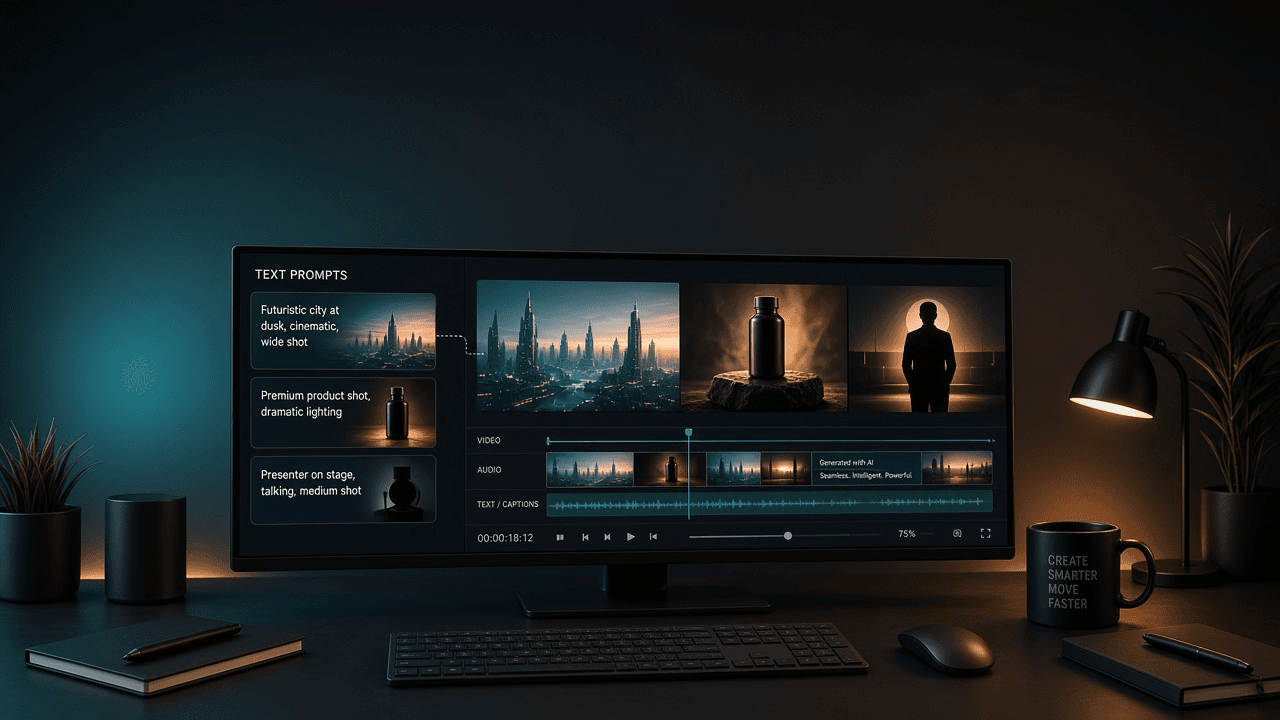
Let’s be honest. Making a video used to require a camera, editing software, a suspicious amount of patience, and at least one argument with your computer.
You would record a 10-minute video, spend three hours editing it, and discover that your microphone had captured the sound of a ceiling fan instead of your voice.
Beautiful. Oscar-worthy. Absolutely unpublishable.
But now, AI video generators are changing the game. You can type a simple description, upload an image, or provide a script, and AI can help turn your idea into a video-sometimes in just a few minutes.
Want a cinematic video of a futuristic city? A product advertisement? A talking avatar explaining your business? Or a YouTube video without spending your entire weekend editing?
There’s probably an AI tool for that.
The tricky part is choosing the right one. Some tools are great for creative video clips, others are better for talking presenters, and some are designed to help businesses produce marketing content.
So, let’s explore the best AI video generators in 2026, what they do well, who should use them, and which ones are worth trying before you accidentally subscribe to 17 different tools.
Quick Answer: What Is the Best AI Video Generator?
The best AI video generator depends on what you want to create.
- Best for cinematic AI video: OpenAI Sora, depending on current access and available features.
- Best for creative text-to-video experiments: Runway.
- Best for realistic generative video: Google Veo, where available.
- Best for AI presenter videos: Synthesia.
- Best for marketing and social media videos: InVideo AI.
- Best for AI-assisted editing and content creation: Adobe Firefly and Adobe's video tools.
- Best for quick talking-avatar content: HeyGen.
- Best for short-form creator workflows: CapCut's AI features.
- Best for beginners who want a simple workflow: Canva's AI video features, where available.
These are different types of tools, not a strict ranking. Features, pricing, free credits, and regional availability can change, so check each provider's current plan before paying.
If you are drafting scripts or scene descriptions before you generate, a clear prompt structure helps-the same habit that improves ChatGPT prompts for everyday work.
9 AI Video Tools Worth Trying in 2026
1. OpenAI Sora - For Creative, Cinematic Videos
Imagine describing a scene to a filmmaker and having them create a video without asking you to buy a camera, hire a crew, or sell your kidney to pay for production.
That’s the appeal of generative video tools like Sora.
You can use a text prompt to describe a scene and generate video content, depending on the features available to your account. It can be useful for visual storytelling, creative experiments, concept videos, and scenes that would be difficult or expensive to film in real life.
Example prompt:
A tiny orange cat wearing a business suit walks confidently into a modern office,
carrying a miniature briefcase. Cinematic lighting, realistic fur, humorous
expression, smooth camera movement.
Honestly, that cat probably has a better career plan than most of us.
Best for:
- Creative storytelling
- Concept videos and visual experiments
- Cinematic-style scenes
- Content creators exploring generative video
Keep in mind: Access, capabilities, output limits, and availability can change. AI-generated clips may also need editing to create a complete, consistent video.
Try it: OpenAI Sora
2. Runway - For Creators Who Want More Creative Control
Runway is worth exploring if you want to experiment with AI-generated video while having tools for shaping and refining the result.
Instead of simply making a clip and calling it a day, you may want to adjust the visual style, experiment with different prompts, or combine generated footage with a broader editing workflow.
That’s where creative video platforms like Runway become interesting.
For example, you could generate a dramatic opening shot for a travel video, create atmospheric footage for a music project, or produce visual scenes for a short film.
Best for:
- Independent filmmakers
- Creative professionals
- Experimental short videos
- AI-generated footage for larger projects
The catch: Getting the exact result you imagine can take several attempts. Your first prompt might create a masterpiece-or a person whose hands appear to have been designed by a confused octopus.
Try it: Runway
3. Google Veo - For High-Quality Generative Video
Google's Veo family is another option to investigate if you want to generate video from text or images using Google's generative AI technology.
Depending on the version and the product through which you access it, capabilities may include cinematic visuals, camera movement, and audio-related features.
This can be useful when you need original visual footage for a concept, an advertisement, a presentation, or a creative project.
Example idea:
Create a cinematic product shot of a glass bottle sitting on a wet surface while soft morning light moves across the background.
No studio. No lighting equipment. No assistant accidentally walking into the shot holding a sandwich.
Best for:
- Cinematic visual concepts
- Creative advertising
- Original footage for storytelling
- People already using Google's AI ecosystem
Keep in mind: Access and features depend on the product, region, and plan. Always review the current offering before making a decision.
Explore: Google Gemini and Google AI
4. Synthesia - For Professional Videos With AI Presenters
Not every video needs explosions, flying cars, or a cat running a multinational company.
Sometimes you just need someone to explain your product clearly.
Synthesia focuses on AI presenter videos. It can be useful for training materials, onboarding videos, educational content, and business explainers without requiring you to film a presenter for every update.
Imagine your company changes its software onboarding process. Instead of gathering everyone for another recording session, you can update the script and produce a revised presentation.
Your camera can remain in the cupboard. Your lighting setup can continue collecting dust.
Best for:
- Employee training
- Business presentations
- Educational explainers
- Product demonstrations
- Multilingual corporate content
The catch: AI presenters can feel less natural than a real person, especially when the script is stiff. Write like a human, not like a printer manual.
Try it: Synthesia
5. InVideo AI - For Turning Ideas Into Social Videos
Have a video idea but absolutely no desire to spend your afternoon assembling clips, captions, voiceovers, and background music?
InVideo AI is worth checking out.
Its workflow is designed to help users create videos from prompts or scripts, with features that may assist with visuals, narration, and editing depending on the plan.
For example, you could start with:
Create a 60-second YouTube video explaining five surprising ways AI can improve
productivity at work. Use an energetic tone, clear captions, and relevant visuals.
The tool can help you turn that starting point into a video draft you can review and refine.
Best for:
- Social media videos
- Marketing content
- Explainer videos
- People who prefer a prompt-based workflow
Try it: InVideo AI
6. Adobe Firefly - For AI Video Within a Creative Workflow
If you're already using Adobe's creative tools, Adobe Firefly is worth considering.
Adobe offers generative AI features across its creative ecosystem, including video-related capabilities. Exact features and availability depend on the product and plan.
The advantage is the possibility of combining AI-generated content with a more traditional editing workflow. That matters when you need more than a cool five-second clip.
For instance, a marketing team might create a visual concept with generative AI, refine the footage, add branded text, and finish the edit using its existing tools.
Best for:
- Designers and creative teams
- Marketing departments
- Existing Adobe users
- Projects that need further editing after generation
The catch: If you're a complete beginner, the broader Adobe ecosystem may feel like walking into an aircraft cockpit just to make a birthday video.
Explore: Adobe Firefly
7. HeyGen - For Talking Avatars and Business Communication
HeyGen is another tool to consider if you want a presenter-style video without recording yourself every time.
Depending on its current features and your plan, you can create avatar-led videos, generate narration, and produce content in multiple languages.
This can be helpful for product explainers, sales presentations, educational videos, and personalized business communication.
Example use case:
You run a software company and need a short video introducing a new feature. Rather than scheduling a recording session, you prepare a script and use an AI avatar to present the information.
You can focus on making the message useful instead of worrying about whether your hair looks like you fought a ceiling fan.
Best for:
- Talking-avatar videos
- Sales and marketing
- Educational explainers
- Business communication
Try it: HeyGen
8. CapCut - For Short-Form Videos and Social Media Editing
CapCut is worth considering if your main goal is to create videos for platforms such as TikTok, Instagram Reels, and YouTube Shorts.
Its editing workflow and AI-assisted features can help with tasks such as captions, effects, and polishing short-form content. Available AI features may vary by region, device, and plan.
The big advantage is that you can focus on making a video that looks good on a phone instead of building an elaborate production process.
Best for:
- Short-form social videos
- Captions and quick edits
- Creator workflows
- Beginners who want to polish clips quickly
The catch: A flashy transition cannot rescue a video with no point. Start with a strong hook, deliver something useful, and then add the effects.
Explore: CapCut
9. Canva - For Simple Videos and Everyday Content
Canva is a practical option if you want to create social posts, presentations, promotional videos, and other visual content without learning a complex editing program.
Its AI video capabilities and integrations depend on the current product and plan, but its design-focused workflow can be convenient for beginners who want to combine text, images, layouts, and video.
For example, a small business could create a promotional video using its logo, product photos, text, and suitable AI-generated elements.
If you are preparing stills for an image-to-video workflow, convert them to a format the tool accepts first-for example with a free PNG to JPG converter or the image converter hub.
Best for:
- Small-business marketing
- Presentations
- Social media content
- People who already use Canva for design
The catch: Canva is not necessarily the best choice for every kind of cinematic, fully generated video. It shines when you want to assemble attractive content quickly.
Try it: Canva
Which AI Video Generator Should You Choose?
Let's make this easier. You don't need to test nine tools before making one video.
| If you want to… | Start by exploring |
|---|---|
| Generate creative, cinematic scenes | Sora, Runway, or Veo |
| Create a video with an AI presenter | Synthesia or HeyGen |
| Turn a script into a marketing video | InVideo AI |
| Edit short videos for social media | CapCut |
| Create branded videos and presentations | Canva |
| Generate footage for a larger editing project | Runway or Adobe Firefly |
These are starting points, not guarantees that one tool will outperform every competitor. Test the same idea in two or three tools and compare the results.
Are There Any Free AI Video Generators?
Yes, some AI video tools offer free access, trials, or limited credits. However, free does not always mean unlimited.
A free plan might restrict the number of generations, video length, resolution, export options, or access to premium models. Some tools may add watermarks or require a paid plan for particular features.
Before creating your entire YouTube channel around a free tool, check:
- Generation limits: How many videos or credits do you receive?
- Watermarks: Will your exported video include branding?
- Video quality: Is the resolution suitable for your platform?
- Commercial use: Does the plan allow your intended use?
- Privacy: What happens to the prompts, images, and videos you upload?
- Export options: Can you download the final video in the format you need?
My advice? Start with a small test project. Don't pay for a year-long subscription before you've even made your first decent clip.
How to Make Your First AI Video
You don't need a film degree. You need a clear idea and a little experimentation.
Step 1: Decide what the video should accomplish
Are you teaching something, advertising a product, telling a story, or entertaining people?
A clear goal makes the rest of the process easier.
Step 2: Write a specific prompt
Avoid vague instructions such as “Make a cool video.”
Try this instead:
Create a 10-second cinematic video of a young entrepreneur working at a desk in a
bright, modern office. Morning sunlight enters through the window. The camera
slowly moves closer. Realistic lighting, natural movement, professional atmosphere,
horizontal 16:9 composition.
Describe the subject, action, setting, visual style, lighting, and camera movement. Include only details that matter to your intended result.
Step 3: Generate a few versions
Your first result may be great. It may also feature a coffee mug that appears to be having an existential crisis.
Try changing one or two details at a time instead of rewriting everything.
Step 4: Edit the result
Trim awkward moments, add captions, improve the pacing, and include music or narration when appropriate.
If you're creating a video with multiple scenes, check that the characters, clothing, and visual style remain reasonably consistent.
Step 5: Check everything before publishing
Look for strange movements, incorrect text, factual mistakes, copyright concerns, and misleading visuals.
If the video depicts a real person or a realistic event, make sure viewers aren't likely to be misled about whether it is genuine.
Then export the video and publish it on your chosen platform.
Can You Use AI-Generated Videos for YouTube or Business?
Often, yes-but the answer depends on the tool's licence, the content you create, and the platform where you publish it.
Before using a video commercially, check the generator's terms for commercial rights, ownership, and restrictions. Be careful with copyrighted characters, music, logos, celebrity likenesses, and cloned voices.
For YouTube, AI assistance alone does not automatically make a video ineligible for monetization. What matters includes the platform's current monetization policies, originality, and whether the content provides genuine value. Mass-producing repetitive, low-value videos is a poor long-term strategy.
If your video contains realistic synthetic content that could mislead viewers, review the platform's disclosure requirements.
In short: use AI to help make something worthwhile, not to flood the internet with 400 nearly identical videos of a motivational robot.
Tips for Getting Better Results From AI Video Tools
Here are a few things that can improve your results:
- Keep your first project simple. One subject, one action, and one clear scene are easier to control than a 12-character science-fiction epic.
- Describe motion, not just appearance. Explain what the subject does and how the camera moves.
- Generate short clips when appropriate. Several usable short clips can be easier to manage than one long generation.
- Use a separate editor when needed. A video generator and a video editor solve different problems. You may need both for a polished result.
- Compare output quality, not just speed. A tool that generates a clip quickly isn't necessarily the best tool for your project.
- Read the pricing details. Credits, export limits, and commercial-use terms can make two apparently similar plans very different.
- Add your own perspective. Your experience, explanation, storytelling, and editing are what help a video stand out.
Final Verdict: What Is the Best AI Video Generator?
There isn't one AI video generator that wins every category.
If you want to experiment with cinematic scenes, start with Sora, Runway, or Veo. If you need a professional presenter, explore Synthesia or HeyGen. If you're creating marketing content, look at InVideo AI. For short social videos, CapCut is a sensible starting point, while Canva can work well for everyday branded content.
The smartest choice is the one that fits your project, budget, and editing skills-not the one with the flashiest advertisement.
Start with one video idea, test a couple of tools, and see which one delivers the best result for your needs.
And remember: AI can generate the video, but it can't magically make a boring idea interesting.
Unfortunately, we're still responsible for that part.
Your turn: What kind of video are you planning to make-YouTube videos, Instagram Reels, business ads, or cinematic AI clips? Choose the goal first, and the right tool becomes much easier to find.
A final checklist before you publish
- I chose a tool that matches my goal (cinematic, presenter, marketing, or social).
- I tested a small project before committing to a paid plan.
- I reviewed facts, visuals, narration, and licensing.
- I checked commercial-use and likeness/consent rules where they apply.
- I edited for pacing, captions, and consistency across scenes.
- I am comfortable taking responsibility for the final video.
Frequently Asked Questions
What is the best AI video generator in 2026?
The best choice depends on the task. Runway, Sora, and Google Veo are options for generative video, while Synthesia and HeyGen focus on AI presenters. InVideo AI, CapCut, and Canva can be useful for marketing and social content.
What is the best free AI video generator?
There is no single best free option for everyone. Compare current free credits, watermarks, resolution, export limits, and commercial-use terms before choosing.
Can I create videos from text using AI?
Yes. Text-to-video tools let you describe a scene in a prompt and generate a video clip. The exact controls, output quality, and available features vary by platform.
Can AI video generators create videos with realistic people?
Some tools can generate realistic people or presenter-style videos. Quality varies, and you should respect consent, likeness rights, and applicable disclosure rules.
Are AI-generated videos copyright-free?
Not automatically. Your rights and obligations depend on the tool's terms, the material used, and applicable law. Check commercial-use permissions and avoid using protected material without authorization.
Are AI video generators worth paying for?
They can be worthwhile if they save enough time or help you produce content you couldn't easily create otherwise. Test a free tier or trial first, then upgrade only if the tool consistently meets your needs.