
Free Notion Templates for Work (Ready to Copy)
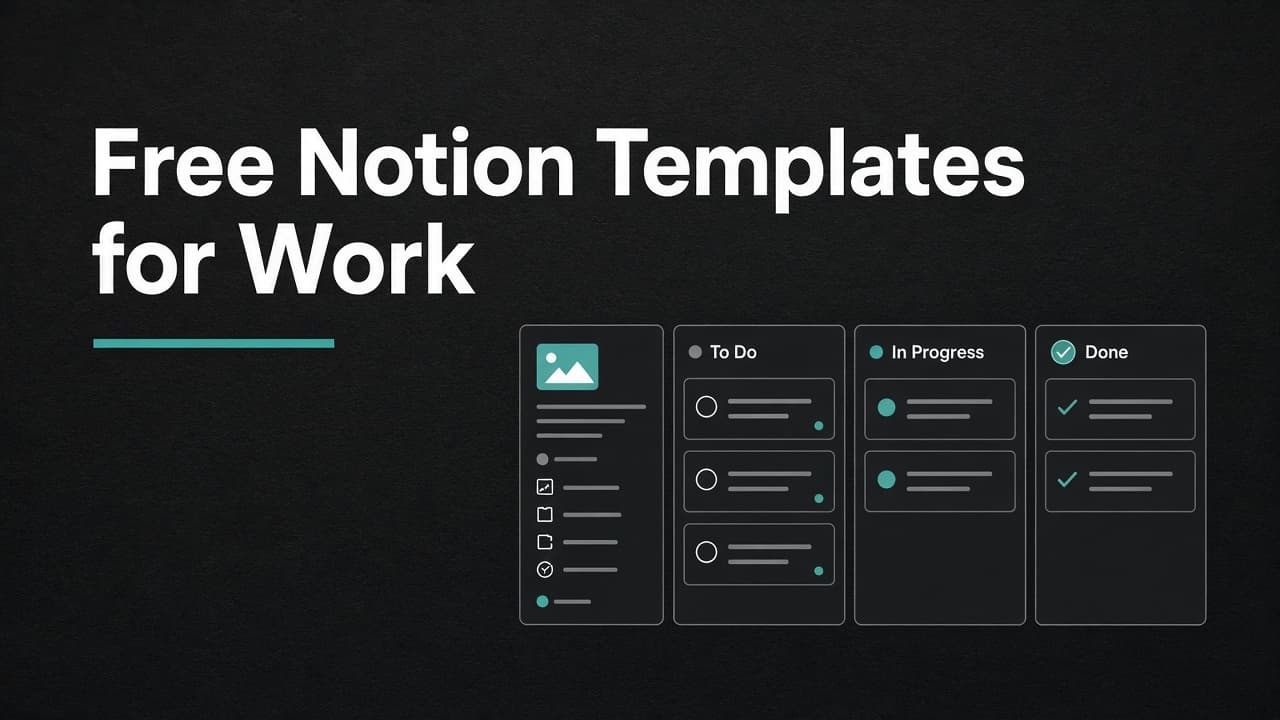
Most “free Notion templates for work” dump you into a marketplace of 40-property dashboards you’ll abandon by Friday. You need the opposite: a few structures you can build in under 30 minutes and still open next month.
Below are ready-to-copy blueprints — databases, properties, views, and page layouts — for the work templates people actually search for.
How to use these Notion templates (copy method)
You do not need a paid pack. Recreate each blueprint:
- Create a new page in Notion.
- Add a database (full page or inline).
- Add the properties listed.
- Create the views (Table / Board / Calendar).
- Duplicate a “template” page inside the database if useful.
Screenshot placeholder: Notion → New page →
/tableor “Database – Full page” → add properties from the blueprint → create Board view by Status
If you also use AI inside Notion, keep it as an add-on — see best AI productivity tools in 2026.
Free Notion templates for work at a glance
| Template | Best for | Build time | Core objects |
|---|---|---|---|
| Daily Planner | Solo / desk jobs | 10 min | Tasks DB + daily page |
| Projects Tracker | Multi-project work | 15 min | Projects DB + tasks relation |
| Meeting Notes | Call-heavy weeks | 10 min | Meetings DB + actions |
| Client CRM-lite | Freelancers / sales-light | 15 min | Clients + next action |
| SOP / Wiki | Repeatable processes | 10 min | Docs DB by category |
| Weekly Review | Closing the loop | 5 min | Checklist page |
1) Daily Planner Notion template
Goal: One place for today’s top work — not a second brain.
Structure
📁 Work Home
  📄 Today (daily page — duplicate each morning)
  📊 Tasks (database)
Tasks database properties
| Property | Type | Options / notes |
|---|---|---|
| Name | Title | Task name |
| Status | Status | Todo / Doing / Done |
| Priority | Select | P1 / P2 / P3 |
| Due | Date | Optional |
| Project | Relation | → Projects (optional at first) |
| Energy | Select | Deep / Shallow (optional) |
Views to create
- Today — filter: Due is today OR Status is Doing
- Board — group by Status
- P1 only — filter Priority = P1
Today page body (copy)
## Top 3
1.
2.
3.

## Schedule
- Deep work:
- Meetings:
- Admin:

## Parking lot
-
Daily checklist
- Duplicate yesterday’s Today page (or clear it)
- Pick only 3 P1 tasks
- Move leftovers to Parking lot or reschedule Due
- Mark Done before shutdown
Pair deep-work blocks with a simple focus timer.
2) Projects Tracker Notion template
Goal: See active projects without a corporate PMO setup.
Projects database properties
| Property | Type | Options / notes |
|---|---|---|
| Name | Title | Project name |
| Status | Status | Idea / Active / Waiting / Done |
| Owner | Person or Text | You / client name |
| Deadline | Date | Hard date if any |
| Next action | Text | One concrete next step |
| Health | Select | Green / Yellow / Red |
| Tasks | Relation | → Tasks DB |
Views
- Active board — Status ≠ Done, group by Status
- At risk — Health = Yellow or Red
- By deadline — Calendar or Timeline on Deadline
Project page template (inside DB)
## Outcome
What “done” means in one sentence:

## Scope
- In:
- Out:

## Links
- Brief:
- Folder:

## Log
- YYYY-MM-DD —3) Meeting Notes Notion template
Goal: Decisions and owners — not a transcript museum.
Meetings database properties
| Property | Type | Options / notes |
|---|---|---|
| Name | Title | YYYY-MM-DD — Topic |
| Date | Date | Meeting date |
| Attendees | Multi-select or Text | |
| Project | Relation | → Projects |
| Decisions | Text | Short |
| Follow-up sent | Checkbox |
Page template body
## Agenda
1.

## Notes


## Decisions
-

## Action items
| Action | Owner | Due |
| --- | --- | --- |
|  |  |  |
Views
- This week — Date is within past week / next week
- Needs follow-up — Follow-up sent is unchecked
After the meeting, draft a short update with help from ChatGPT beginner prompts if you want speed — then paste owners back into Notion.
4) Client CRM-lite Notion template (for freelancers)
Goal: Remember who owes a reply — not a Salesforce clone.
Clients database properties
| Property | Type | Options / notes |
|---|---|---|
| Name | Title | Client / company |
| Stage | Select | Lead / Active / Paused / Alumni |
| Next action | Text | One step only |
| Next action date | Date | When you’ll do it |
| Warmth | Select | Hot / Warm / Cold |
| Source | Select | Referral / Upwork / LinkedIn / Other |
| Notes | Text | Short context |
Views
- Needs action this week — Next action date on or before this week
- Active clients — Stage = Active
- Leads — Stage = Lead, sorted by Warmth
Rules that keep it alive
- Every Active client has a Next action + date.
- No more than 7 Hot leads.
- Friday: clear Cold leads or move to Alumni.
For proposal structure once a lead is ready, see how to write a freelance proposal that wins clients.
5) SOP / company wiki Notion template
Goal: Repeatable how-tos your future self can follow.
Docs database properties
| Property | Type | Options / notes |
|---|---|---|
| Name | Title | SOP title |
| Category | Select | Sales / Delivery / Admin / Tools |
| Owner | Text | Who updates it |
| Last reviewed | Date | |
| Status | Select | Draft / Live / Deprecated |
SOP page body
## Purpose
When to use this:

## Steps
1.
2.
3.

## Tools / links
-

## Common mistakes
-

## Checklist
- [ ]
- [ ]
Views
- Live SOPs — Status = Live
- Due for review — Last reviewed older than 90 days (manual filter)
6) Weekly Review Notion template (page)
Duplicate every Friday. Do not overbuild.
## Wins
-

## What slipped
-

## Projects health
- Green:
- Yellow:
- Red:

## Next week top 3
1.
2.
3.

## Cleanup
- [ ] Archive Done tasks
- [ ] Update Next action on Active projects
- [ ] Clear Cold CRM leads
- [ ] Delete a view I never open
Minimal workspace map (copy this layout)
🏠 Work OS
├─ 📄 Today
├─ 📊 Tasks
├─ 📊 Projects
├─ 📊 Meetings
├─ 📊 Clients (optional)
├─ 📊 SOPs (optional)
└─ 📄 Weekly Review
That’s enough for most knowledge work. If a new database doesn’t have a weekly view you’ll open, don’t create it.
Notion template mistakes that waste hours
- Copying a 20-database “life OS” you’ll never maintain
- Too many Select options (12 statuses = nobody updates Status)
- No Next action on projects or clients
- Dashboard vanity before a working Today page
- Never archiving — Done items clutter every filter
- Mixing personal and work without separate top pages
Build order (recommended)
- Tasks + Today page
- Projects + relation to Tasks
- Weekly Review
- Meetings (if call-heavy)
- Clients CRM-lite (if you sell)
- SOPs (once a process repeats 3+ times)
Final checklist before you call it “done”
- I can open Today and see my top 3 in under 10 seconds
- Every Active project has a Next action
- I have Board or Table views I actually use — not five unused ones
- Friday Weekly Review page exists
- I deleted at least one property I added “just in case”
- Personal stuff is not polluting the Work OS
Bottom line: Free Notion templates for work work best as simple blueprints, not marketplace megapacks. Build Daily + Projects first, add Meetings/CRM only when needed, and protect the habit that makes the system real: a weekly cleanup.
Related posts
- Problem-awareNov 25, 2026 · 3 min read
How to Build Confidence as a New Freelance Developer
Imposter feelings are normal. Confidence for new freelance developers comes from systems that make delivery predictable - not from pretending you have ten years of agency experience.
- Problem-awareNov 24, 2026 · 3 min read
How Freelancers Can Avoid Burnout With Multiple Clients
Multiple clients do not cause burnout by themselves. Oversold capacity, invisible switching cost, and no off switch do. Here is how freelancers stay sustainable.
- Problem-awareNov 23, 2026 · 3 min read
How to Turn a One-Off Project Into a Retainer
Launch is not the end of the relationship. Here is how freelancers propose retainers that clients accept instead of calling someone new for every bug.